
Teams running AI models on Baseten need visibility into what those deployments are actually doing: how fast they respond, how often they fail, how much GPU they consume, whether the queue is backing up, and when autoscaling kicks in or stalls. Without that signal, debugging latency regressions, right-sizing instances, and catching errors before they affect users means flying partially blind.
This guide walks through a complete Baseten monitoring setup using Fluent Bit to scrape Baseten's Prometheus metrics endpoint and Parseable to store, query, and alert on the results. By the end, you will have inference metrics flowing into Parseable where you can query them with SQL, build dashboards, and configure alerts on latency, errors, and resource usage.
What You'll Build
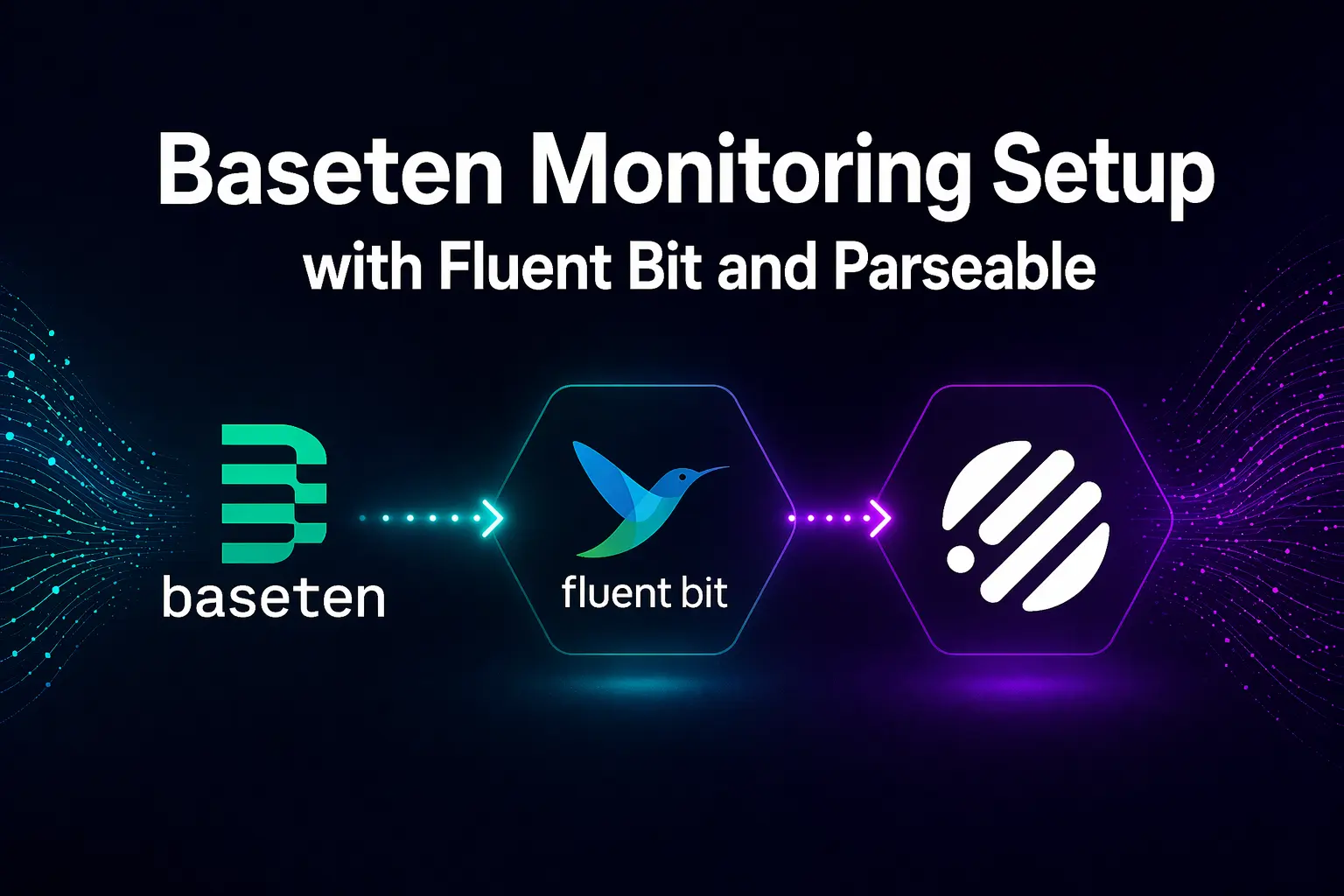
The monitoring pipeline this guide sets up:
Baseten Prometheus metrics endpoint
  → Fluent Bit (prometheus_scrape input)
    → Parseable HTTP ingest
      → SQL queries, dashboards, and alerts
Fluent Bit scrapes Baseten's metrics on a configurable interval and forwards them to Parseable over HTTP. Parseable stores each scrape as a row in a stream, which you can then query with SQL, visualize in dashboards, and monitor with alerts.
Why Monitor Baseten Deployments?
Performance and Latency
Inference latency is usually the first signal teams care about. Baseten exposes response time at multiple percentiles — p50, p90, p95, and p99 — along with end-to-end response time, inference time, and time to first byte. Tracking these over time shows whether latency is stable, drifting, or spiking under load, and whether a recent model update changed performance characteristics.
Resource and Scaling Signals
CPU usage, memory usage, GPU utilization, and GPU memory are the core resource signals for right-sizing Baseten deployments. Alongside those, Baseten surfaces replica counts — active vs starting — and concurrent requests, which is the primary signal that drives autoscaling decisions. Watching concurrent requests tells you whether your replica scaling is keeping up with demand or whether requests are waiting for capacity.
Reliability and Cost Signals
Error rates, timeout patterns, and async queue depth round out the reliability picture. An async queue that is growing steadily is an early warning that the deployment is falling behind. High GPU memory utilization relative to actual model usage may indicate overprovisioning. These signals together give you the data needed to catch problems before they affect users and to optimize spend on GPU capacity.
Architecture Overview
Baseten to Parseable Monitoring Pipeline
The three components in this pipeline have distinct roles:
- Baseten exposes model and deployment metrics through a Prometheus-compatible endpoint. Metrics cover inference performance, resource usage, scaling state, and queue behavior.
- Fluent Bit scrapes that endpoint on a defined interval and forwards the metric data to Parseable over HTTP. Fluent Bit is a lightweight, high-performance telemetry processor and forwarder that handles logs, metrics, and traces with native OpenTelemetry support — well-suited for this kind of log aggregation and metric forwarding role.
- Parseable receives the scraped metrics, stores them in Apache Parquet on S3-compatible object storage, and provides a SQL query editor, dashboards, and alerting.
If you are evaluating collection agent options before committing to Fluent Bit, see Fluent Bit vs OpenTelemetry Collector for a detailed comparison of the two approaches.
Prerequisites
Before starting:
- Baseten account with at least one active model deployment
- Baseten API key with access to the deployment metrics endpoint
- Parseable instance running locally or in cloud — a 14-day free trial is available at Parseable pricing
- Fluent Bit 2.0 or later — verify that your installed version supports the
prometheus_scrapeinput and HTTP output configuration used in this guide. The current Fluent Bit stable release is v5.0.3, but any version from 2.0 onward covers what this guide requires - Network access from the Fluent Bit host to both the Baseten metrics endpoint and your Parseable instance
- Basic terminal access for running configuration and startup commands
Step 1: Configure Fluent Bit to Scrape Baseten Metrics
Create the Fluent Bit Config
Create a file named fluent-bit-baseten.conf with the following configuration. Substitute your Baseten deployment metrics URL and Parseable instance details:
[SERVICE]
    Flush        5
    Daemon       Off
    Log_Level    info

[INPUT]
    Name              prometheus_scrape
    Host              api.baseten.co
    Port              443
    Metrics_Path      /v1/deployments/${BASETEN_DEPLOYMENT_ID}/metrics
    Tag               baseten.metrics
    Scrape_Interval   30s
    tls               On
    tls.verify        On
    http_user         ${BASETEN_API_KEY}

[OUTPUT]
    Name              http
    Match             baseten.metrics
    Host              ${PARSEABLE_HOST}
    Port              ${PARSEABLE_PORT}
    URI               /api/v1/ingest
    Format            json
    Header            Authorization Basic ${PARSEABLE_AUTH}
    Header            X-P-Stream baseten-metrics
    tls               ${PARSEABLE_TLS}
Note on the metrics path: Confirm the exact Baseten metrics endpoint path from your Baseten account or the Baseten metrics docs. The path above is a placeholder pattern — your deployment's actual endpoint may differ, especially if you are using a workspace-specific URL.
Configuration Breakdown
| Setting | Purpose |
|---|---|
prometheus_scrape | Fluent Bit input plugin that polls a Prometheus-compatible endpoint |
Scrape_Interval 30s | How often Fluent Bit polls Baseten for new metric values. Keep this conservative to avoid hitting endpoint rate limits |
Tag baseten.metrics | Routes scraped metrics to the matching output |
http_user | Passes the Baseten API key as the HTTP authentication credential |
X-P-Stream baseten-metrics | Tells Parseable which stream to write to. Create this stream in Parseable before running Fluent Bit |
Format json | Sends the scraped Prometheus metrics to Parseable as JSON rows |
Step 2: Set Environment Variables Securely
Export Required Variables
# Baseten
export BASETEN_API_KEY="your-baseten-api-key"
export BASETEN_DEPLOYMENT_ID="your-deployment-id"

# Parseable
export PARSEABLE_HOST="your-parseable-host"
export PARSEABLE_PORT="8000"
export PARSEABLE_AUTH="$(echo -n 'username:password' | base64)"
export PARSEABLE_TLS="On"   # set to Off if using local HTTP
Security note: Environment variables are appropriate for local testing and development. In production:
- Use Kubernetes Secrets if deploying Fluent Bit in a cluster
- Use Docker secrets if running in Docker Swarm
- Use a managed secret store (AWS Secrets Manager, HashiCorp Vault, or equivalent) for any multi-environment deployment
- Never hardcode API keys in the config file or commit them to version control
Step 3: Start the Monitoring Pipeline
Run Fluent Bit with the Baseten Config
Use this startup script to validate prerequisites before launching:
#!/bin/bash
set -e

# Verify required variables
if [ -z "$BASETEN_API_KEY" ]; then
    echo "Error: BASETEN_API_KEY is not set"
    exit 1
fi

if [ -z "$BASETEN_DEPLOYMENT_ID" ]; then
    echo "Error: BASETEN_DEPLOYMENT_ID is not set"
    exit 1
fi

# Check Parseable is reachable
echo "Checking Parseable connectivity..."
curl -sf "http://${PARSEABLE_HOST}:${PARSEABLE_PORT}/api/v1/about" \
    -H "Authorization: Basic ${PARSEABLE_AUTH}" > /dev/null \
    && echo "Parseable: reachable" \
    || { echo "Error: Cannot reach Parseable at ${PARSEABLE_HOST}:${PARSEABLE_PORT}"; exit 1; }

# Start Fluent Bit
echo "Starting Fluent Bit..."
fluent-bit -c fluent-bit-baseten.conf
The script checks whether Parseable is reachable, whether the required environment variables are set, and whether Fluent Bit can start with the config before leaving any silent failures.
Step 4: Verify Baseten Metrics in Parseable
Check the Stream in Parseable
- Open the Parseable UI and navigate to the Streams panel
- Select the
baseten-metricsstream - Run a time-range query covering the last 5 minutes to confirm rows are arriving
- If the stream is empty after a full scrape interval has passed, check Fluent Bit logs for connection errors or authentication failures
Inspect the Schema Before Writing Queries
Before writing any SQL queries, inspect the actual field names in your Parseable stream. Baseten's Prometheus metrics are exported under specific metric names that may differ from simplified examples used in documentation.
In the Parseable query editor:
SELECT * FROM "baseten-metrics" LIMIT 5This returns a sample of raw rows. Use the field names from the actual output — not example field names — when writing queries and alerts. The sections below use descriptive placeholders where exact field names depend on your deployment's exported schema.
Understanding Baseten Metrics
Performance Metrics
Baseten deployment metrics include response time at multiple percentiles (p50, p90, p95, p99), end-to-end response time, inference time, and time to first byte. Ingested volume and request and response size are also available.
In Parseable, these appear as numeric columns in the baseten-metrics stream. The exact Prometheus metric names to look for in your stream schema are documented in the Baseten metrics reference.
Resource Metrics
Resource metrics cover CPU usage, memory usage, GPU utilization, and GPU memory. For GPU-heavy models, GPU utilization and GPU memory are the most operationally significant — consistently high values may indicate the model is running at full capacity, while consistently low values may indicate the deployment is overprovisioned.
Scaling and Queue Metrics
Scaling metrics include replica counts (active and starting), concurrent requests, async queue size, and time in async queue. Concurrent requests is the primary autoscaling signal in Baseten — it determines when new replicas are added or removed. Watching this field alongside active replica count shows whether scaling is keeping pace with load.
Async queue size is a key reliability signal for deployments that handle asynchronous requests. A queue that grows over time without draining indicates the deployment cannot keep up with the incoming request rate at its current replica count.
Reliability Metrics
Response status distribution (2xx, 4xx, 5xx) and timeout behavior are the core reliability signals. Rising 5xx rates or increasing timeout counts are usually the first signs of a degraded deployment before latency percentiles visibly spike.
Query Baseten Metrics with SQL in Parseable
The queries below use placeholder field names. Replace the field names with the actual column names from your baseten-metrics stream schema before running them.
Average Inference Latency Over Time
SELECT
    DATE_TRUNC('minute', p_timestamp) AS minute,
    AVG(inference_latency_p50) AS avg_p50,
    AVG(inference_latency_p95) AS avg_p95,
    AVG(inference_latency_p99) AS avg_p99
FROM "baseten-metrics"
WHERE p_timestamp >= NOW() - INTERVAL '1 hour'
GROUP BY minute
ORDER BY minute DESC
This shows latency percentile trends over the last hour. Substitute inference_latency_p50, inference_latency_p95, and inference_latency_p99 with the actual field names from your stream.
Error Rate Analysis
SELECT
    DATE_TRUNC('minute', p_timestamp) AS minute,
    SUM(requests_5xx) AS errors,
    SUM(requests_total) AS total,
    ROUND(100.0 * SUM(requests_5xx) / NULLIF(SUM(requests_total), 0), 2) AS error_rate_pct
FROM "baseten-metrics"
WHERE p_timestamp >= NOW() - INTERVAL '1 hour'
GROUP BY minute
ORDER BY minute DESC
Peak Usage Identification
SELECT
    DATE_TRUNC('hour', p_timestamp) AS hour,
    MAX(concurrent_requests) AS peak_concurrent,
    MAX(active_replicas) AS max_replicas,
    AVG(gpu_utilization) AS avg_gpu_pct
FROM "baseten-metrics"
WHERE p_timestamp >= NOW() - INTERVAL '24 hours'
GROUP BY hour
ORDER BY hour DESC
Autoscaling Signal Analysis
SELECT
    DATE_TRUNC('minute', p_timestamp) AS minute,
    AVG(concurrent_requests) AS avg_concurrent,
    MAX(active_replicas) AS active_replicas,
    MAX(starting_replicas) AS starting_replicas,
    AVG(inference_latency_p95) AS p95_latency
FROM "baseten-metrics"
WHERE p_timestamp >= NOW() - INTERVAL '2 hours'
GROUP BY minute
ORDER BY minute DESC
This correlates concurrent request load with replica scaling state and p95 latency, which helps diagnose whether autoscaling is responding fast enough to load changes.
Set Up Alerts for Baseten Monitoring
High Error Rate Alert
In Parseable's alert configuration, create a threshold alert on error rate:
{
  "name": "Baseten High Error Rate",
  "query": "SELECT ROUND(100.0 * SUM(requests_5xx) / NULLIF(SUM(requests_total), 0), 2) AS error_rate FROM \"baseten-metrics\" WHERE p_timestamp >= NOW() - INTERVAL '5 minutes'",
  "condition": "error_rate > 5",
  "severity": "critical",
  "message": "Baseten deployment error rate exceeded 5% in the last 5 minutes"
}
Adjust the threshold and window to match your deployment's normal error baseline.
High Latency Alert
{
  "name": "Baseten p95 Latency Spike",
  "query": "SELECT AVG(inference_latency_p95) AS avg_p95 FROM \"baseten-metrics\" WHERE p_timestamp >= NOW() - INTERVAL '5 minutes'",
  "condition": "avg_p95 > 2000",
  "severity": "warning",
  "message": "Baseten p95 inference latency exceeded 2000ms in the last 5 minutes"
}
Replace 2000 with a threshold appropriate for your model's expected latency profile.
Queue Depth Alert
{
  "name": "Baseten Async Queue Backing Up",
  "query": "SELECT MAX(async_queue_size) AS max_queue FROM \"baseten-metrics\" WHERE p_timestamp >= NOW() - INTERVAL '5 minutes'",
  "condition": "max_queue > 100",
  "severity": "warning",
  "message": "Baseten async queue depth exceeded 100 in the last 5 minutes"
}
Two to three targeted alerts on the highest-signal metrics are more actionable than a large number of broad alerts. Start with error rate, latency, and queue depth, then add more as you learn your deployment's normal operating range.
Cost Optimization Tips
Use Baseten Monitoring to Right-Size Deployments
Monitoring data is the input to capacity decisions. A few patterns to watch for:
- Consistently low GPU utilization: if GPU utilization is well below its maximum during peak hours, the deployment may be using a larger GPU instance than the model requires. Baseten's docs note that low CPU, memory, or GPU utilization can indicate overprovisioning, and suggest switching to a smaller instance where the workload fits
- Autoscaling that never scales down: if active replicas stay at the maximum and concurrent requests remain low, your minimum replica configuration may be too high for the actual traffic pattern
- Queue growth during specific time windows: async queue depth that grows at predictable times indicates load patterns you can use to pre-warm capacity rather than relying solely on reactive autoscaling
- Batch size inefficiency: compare inference time per request at different batch sizes to find the configuration that maximizes throughput per GPU hour
Daily Usage Analysis Query
SELECT
    DATE_TRUNC('day', p_timestamp) AS day,
    SUM(requests_total) AS total_requests,
    AVG(gpu_utilization) AS avg_gpu_utilization,
    MAX(active_replicas) AS peak_replicas,
    AVG(inference_latency_p50) AS avg_p50_latency,
    -- Replace the multiplier below with your actual Baseten pricing or billing export logic
    SUM(requests_total) * 0.001 AS estimated_cost_placeholder
FROM "baseten-metrics"
WHERE p_timestamp >= NOW() - INTERVAL '7 days'
GROUP BY day
ORDER BY day DESCNote: The estimated_cost_placeholder column uses a dummy multiplier. Replace it with your actual Baseten pricing rate or connect this query to your billing export data for real cost estimation. Do not use the placeholder value for financial decisions.
For teams evaluating the broader economics of AI inference infrastructure, see observability pricing for context on monitoring and storage costs alongside compute costs.
Troubleshooting Baseten Monitoring Setup
Parseable Connection Issues
If Fluent Bit starts but metrics do not appear in Parseable:
# Test Parseable connectivity manually
curl -v \
    -H "Authorization: Basic ${PARSEABLE_AUTH}" \
    "http://${PARSEABLE_HOST}:${PARSEABLE_PORT}/api/v1/about"
Check for TLS certificate issues if you are connecting over HTTPS. Verify that the baseten-metrics stream has been created in Parseable before Fluent Bit tries to write to it — Parseable will reject writes to a stream that does not exist.
No Metrics Appearing in Parseable
Check Fluent Bit logs for errors:
fluent-bit -c fluent-bit-baseten.conf -vCommon causes:
- Authentication failure: verify that
BASETEN_API_KEYis exported correctly and that the key has access to the deployment metrics endpoint - Wrong endpoint path: confirm the Baseten metrics URL with your Baseten account settings or the Baseten metrics docs
- No active deployment: metrics are only available for deployments that are running. A deployment in a cold or stopped state may not expose metrics
- Scrape interval too short: if the endpoint returns errors before a full scrape interval completes, Fluent Bit may not have output any metrics yet. Wait for at least two full scrape intervals before debugging further
Rate Limit Errors
If Fluent Bit logs show HTTP 429 responses from Baseten, increase the Scrape_Interval in the config. Keep the interval conservative, and confirm the current metrics endpoint rate limit from your Baseten plan details or the Baseten support documentation — the specific limit may vary by account tier.
A 30-second scrape interval is a reasonable default for most monitoring use cases and should stay well within typical API rate limits.
Fluent Bit Memory Usage
If Fluent Bit memory usage grows over time, add a backpressure limit:
[SERVICE]
    Flush              5
    Daemon             Off
    Log_Level          info
    storage.max_chunks_up  128
Also check whether the output is falling behind — if Parseable is slow to accept writes, Fluent Bit buffers in memory until the output clears. Verify Parseable ingest latency if memory usage is consistently high.
Advanced Configuration
Filter Specific Metrics
To forward only a subset of scraped metrics to Parseable, add a Fluent Bit grep filter between input and output:
[FILTER]
    Name    grep
    Match   baseten.metrics
    Regex   name (inference_latency|request_count|gpu_utilization|async_queue)
Adjust the regex to match the Prometheus metric names your deployment actually exports. This reduces the volume of data written to Parseable if you only need a subset of available signals.
Add Deployment Labels
Enrich each metric row with deployment context using a record_modifier filter:
[FILTER]
    Name            record_modifier
    Match           baseten.metrics
    Record          environment production
    Record          region us-east-1
    Record          model_name your-model-name
    Record          deployment_id ${BASETEN_DEPLOYMENT_ID}
Adding labels like environment, region, model_name, and deployment_id makes SQL queries in Parseable significantly more useful — you can filter and group by deployment without relying on implicit stream partitioning.
Monitor Multiple Baseten Deployments
To monitor more than one deployment, add additional [INPUT] blocks in the same config, each with a different BASETEN_DEPLOYMENT_ID:
[INPUT]
    Name              prometheus_scrape
    Host              api.baseten.co
    Port              443
    Metrics_Path      /v1/deployments/${BASETEN_DEPLOYMENT_ID_A}/metrics
    Tag               baseten.metrics.deployment-a
    Scrape_Interval   30s
    tls               On
    http_user         ${BASETEN_API_KEY}

[INPUT]
    Name              prometheus_scrape
    Host              api.baseten.co
    Port              443
    Metrics_Path      /v1/deployments/${BASETEN_DEPLOYMENT_ID_B}/metrics
    Tag               baseten.metrics.deployment-b
    Scrape_Interval   30s
    tls               On
    http_user         ${BASETEN_API_KEY}

[OUTPUT]
    Name    http
    Match   baseten.metrics.*
    # ... same output config as above
Use a wildcard match pattern (baseten.metrics.*) in the output block to forward all deployment tags to Parseable. Use the record_modifier filter per input block to label each deployment's metrics separately.
Optional: Add Traces for Deeper Inference Debugging
Metrics give you the high-level picture: request volume, latency percentiles, GPU usage, queue depth, and scaling state. Traces give you the request-level view: where time is spent inside a single prediction, which parts of the model pipeline are slow, and how individual requests behave under load.
Baseten's Truss server includes built-in OpenTelemetry instrumentation. Tracing is disabled by default because it introduces minor overhead, but it can be enabled for deployments where you need deeper inference debugging. Baseten also supports custom OpenTelemetry instrumentation for model-specific spans.
If your team needs request-level observability beyond what metrics provide, see the Baseten tracing docs for setup instructions. Parseable accepts traces over its OpenTelemetry ingestion endpoint, so you can route both metrics and traces to the same platform.
Conclusion
With this setup, Baseten monitoring flows through a straightforward three-component pipeline:
- Baseten exposes inference and deployment metrics at a Prometheus-compatible endpoint
- Fluent Bit scrapes those metrics on a regular interval and forwards them to Parseable over HTTP
- Parseable stores the metrics in Apache Parquet, makes them queryable with SQL, and supports dashboards and alerts on inference latency, error rates, GPU utilization, queue depth, and scaling signals
From here, you can extend the setup with additional deployment labels, filtered metric subsets for multiple models, or traces for request-level debugging.
For teams evaluating the full cost of this stack, see Parseable pricing for current Pro and Enterprise plan details. The 14-day free trial is available without a credit card and gives you a working environment to validate queries and dashboard coverage before committing.